
Featured on LaunchIgniter

AI 3D generator for images and text.

Upload one object or describe it. The AI 3D generator builds a draft you can inspect, download, and refine in your existing workflow.

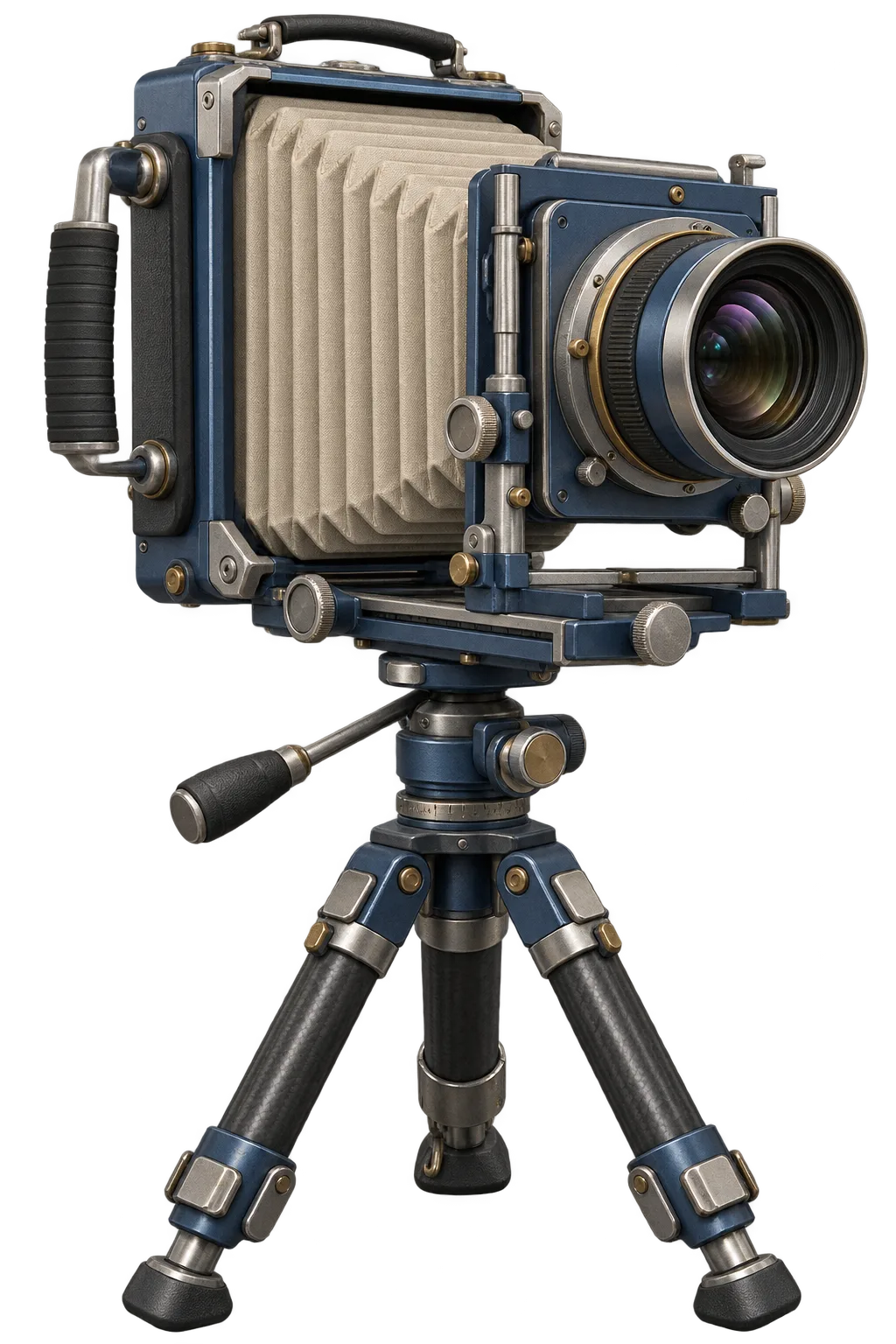
Original 3D asset concept of a cobalt field camera

Try the AI 3D generator.

Upload an image or describe one object in text. The AI 3D generator shows the available mode and credit cost before you start a task.

Generation mode
Advanced options

Credit price is shown before generation

Sign in is required to create and securely store a model.

Ideas that need another dimension.

Use the AI 3D generator to explore products, props, and game assets before committing time to detailed manual modeling.

Product concepts

Product concepts

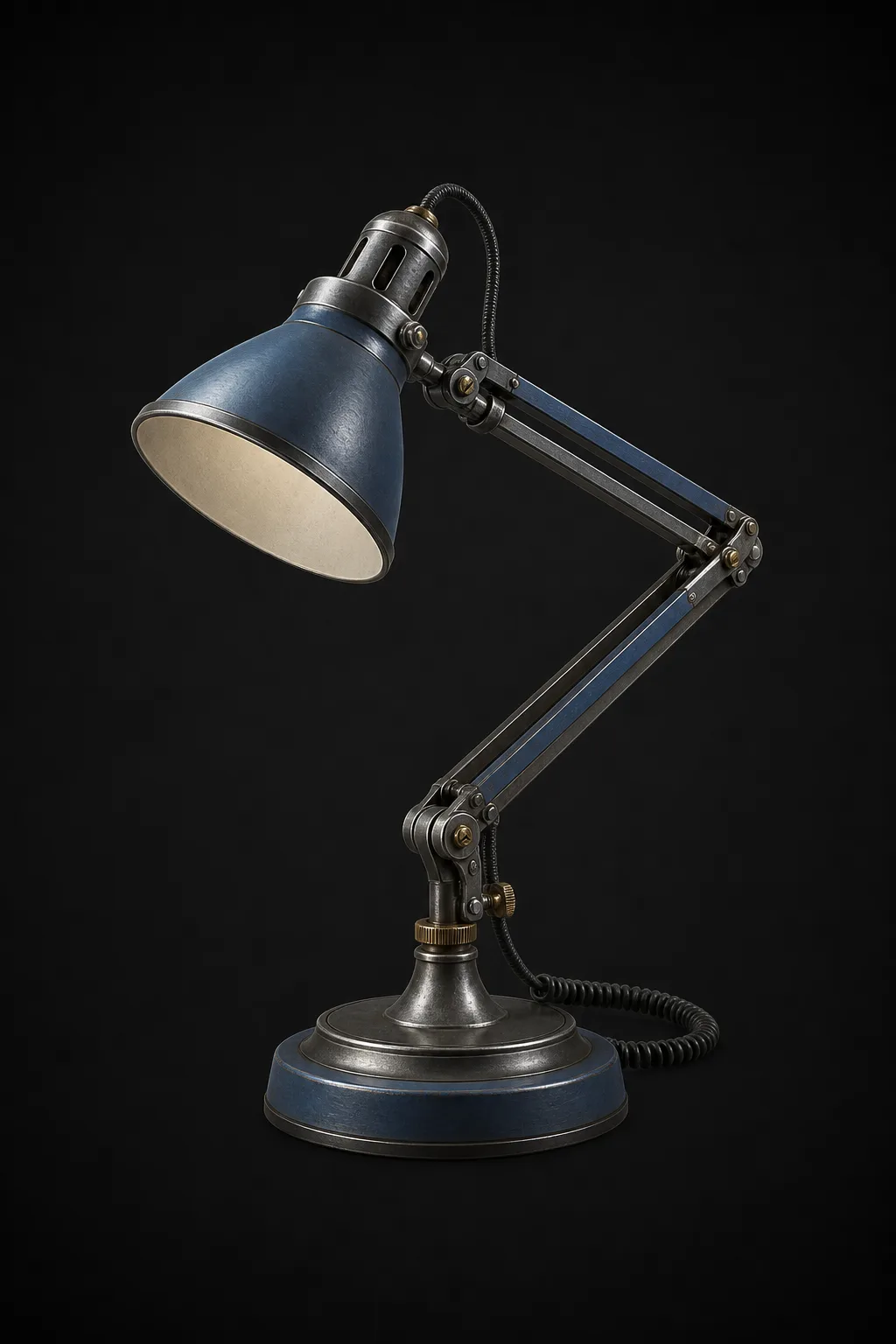
Test silhouette and proportion before committing to detailed modeling.

Props and furniture

Props and furniture

Turn a focused reference into a draft you can inspect from every side.

Game asset drafts

Game asset drafts

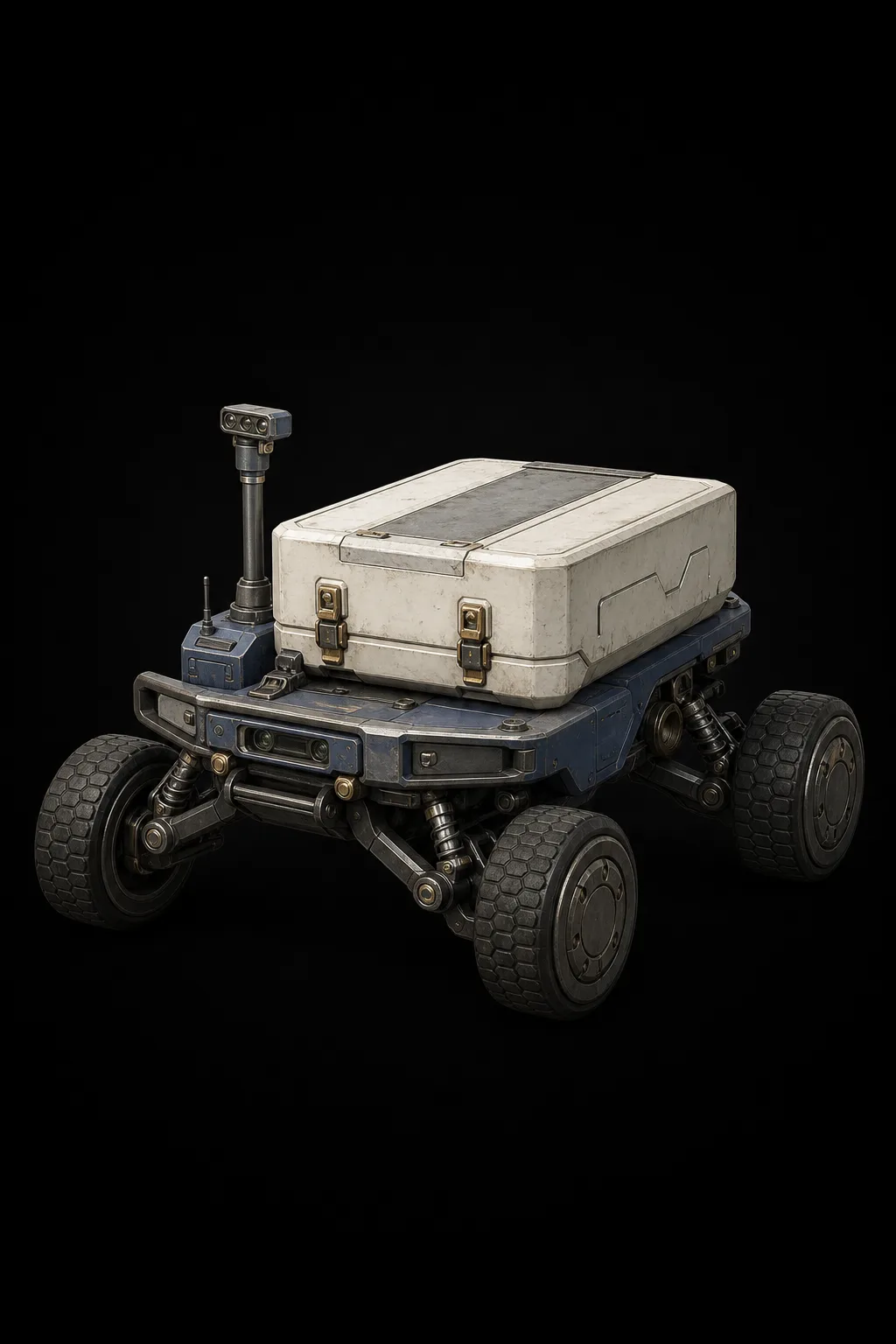
Explore a readable shape, then continue topology and material work in your 3D tool.

How the AI 3D generator works.

Four visible decisions take an AI 3D generator task from the first input to an inspected model and authorized download.

Original 3D asset concept of a cobalt field camera
Animated model workflow preview

Choose the right AI 3D generator input.

An AI 3D generator can begin with a reference image or a written idea. Choose the evidence you already have, then treat the result as a reviewable draft inside a larger creative workflow.

Reference-led workflow

Image-led AI 3D generator workflow

Use image to 3D when a reference shows the object's silhouette, proportion, color, and surface cues. The AI 3D generator reads those signals and estimates angles the source cannot show. Isolated products, props, toys, and furniture are easier to interpret when the entire subject remains inside the frame.

A clean image reduces ambiguity, but an AI 3D generator cannot recover missing facts. Rotate the preview, inspect the back and underside, and compare the draft with the source. Use GLB for interactive review when available, then continue topology, material, UV, scale, and target-specific work in a compatible 3D editor.

Learn the image to 3D workflow

Idea-led workflow

Text-led AI 3D generator workflow

Use text to 3D when the object is still an idea. Give the AI 3D generator one subject, then describe shape, defining parts, material, color, and one style direction. A focused prompt such as a cobalt field camera with a brass lens mount gives clearer constraints than unrelated adjectives.

Treat the first output as a response to the brief. Clarify proportions when the silhouette is wrong, describe relationships when parts merge, and remove competing style terms when materials drift. Change one prompt category, let the AI 3D generator create a new draft, and inspect it from several angles before editing.

Learn the text to 3D workflow

Review before production

What every AI 3D generator draft needs next.

Inspect the geometry

Every AI 3D generator has to infer something. Images leave hidden surfaces unknown, while text leaves interpretation open. Inspect the front, back, top, and bottom for disconnected parts, flat depth, weak thin elements, asymmetry, merged surfaces, and unexpected materials. An AI 3D generator draft becomes useful when you can name what works and what needs rebuilding.

Choose the next file

Choose files for the next tool, not for a vague idea of quality. GLB can combine geometry and materials for browser preview, OBJ supports mesh exchange, and STL carries geometry for many fabrication workflows. The AI 3D generator exposes only formats returned after a successful task. Verify topology, scale, UVs, textures, file size, and compatibility downstream.

Keep the task controlled

Img3D keeps boundaries visible around the AI 3D generator. The workbench shows mode and credit information before a task. Failed generations return reserved credits without double refunds. Uploads and source models use private object storage, downloads require signed links, and public examples require rights review plus administrator publication. These controls make generation safer to evaluate and operate.

AI 3D generator questions, answered.

Practical answers about references, prompts, downloadable files, private assets, and failed AI 3D generator tasks.

What kind of image works best?

Give the AI 3D generator one complete object on a simple background. Avoid cropped edges, heavy occlusion, transparency, and strong reflections. A three-quarter view usually provides better depth cues than a flat front view.

What makes a useful text prompt?

Name one object, then describe shape, key parts, material, color, and one style. The AI 3D generator works better when the prompt defines part relationships instead of stacking conflicting adjectives.

Which 3D formats can I download?

The AI 3D generator supports GLB browser previews and downloadable GLB, OBJ, or STL files when the provider returns them. Availability depends on the selected mode and a successful task.

Are uploaded images and models public?

No. Inputs sent to the AI 3D generator and source files use private object storage. Access requires an authorized signed link. Public examples require a separate rights review and publication step.

What happens if generation fails?

A failed AI 3D generator task records the error and returns reserved credits automatically. The same task cannot refund twice. Review the failure in generation history before trying a clearer input.

A practical AI 3D generator.

The AI 3D generator keeps inputs, generation choices, output formats, and task expectations visible before work begins.

input paths
2
Image and text
generation modes
2
Fast and Quality
initial formats
3
GLB, OBJ, and STL when supported

Start with the AI 3D generator.

Bring one image or one clear description. The AI 3D generator shows the available mode and credit cost before generation begins.

Open the generator